Design Thursday #107
A weekly recap of everything you need to know about tools, events, guidelines and design in general.


Figma Check Designs
Check Designs is now available for everyone in Figma. It compares your designs against your design system, flags what's off, and suggests the correct fix in one click. Variable and style suggestions catch hard-coded colors, spacing, radius, and text values and replace them with the right tokens. Accessibility suggestions flag contrast violations and swap them for WCAG 2.0 AA or AAA-compliant colors. It also detects library mismatches and detached components, so you can catch drift as you work or run a full QA pass right before handoff.
Framer Forms Antispam
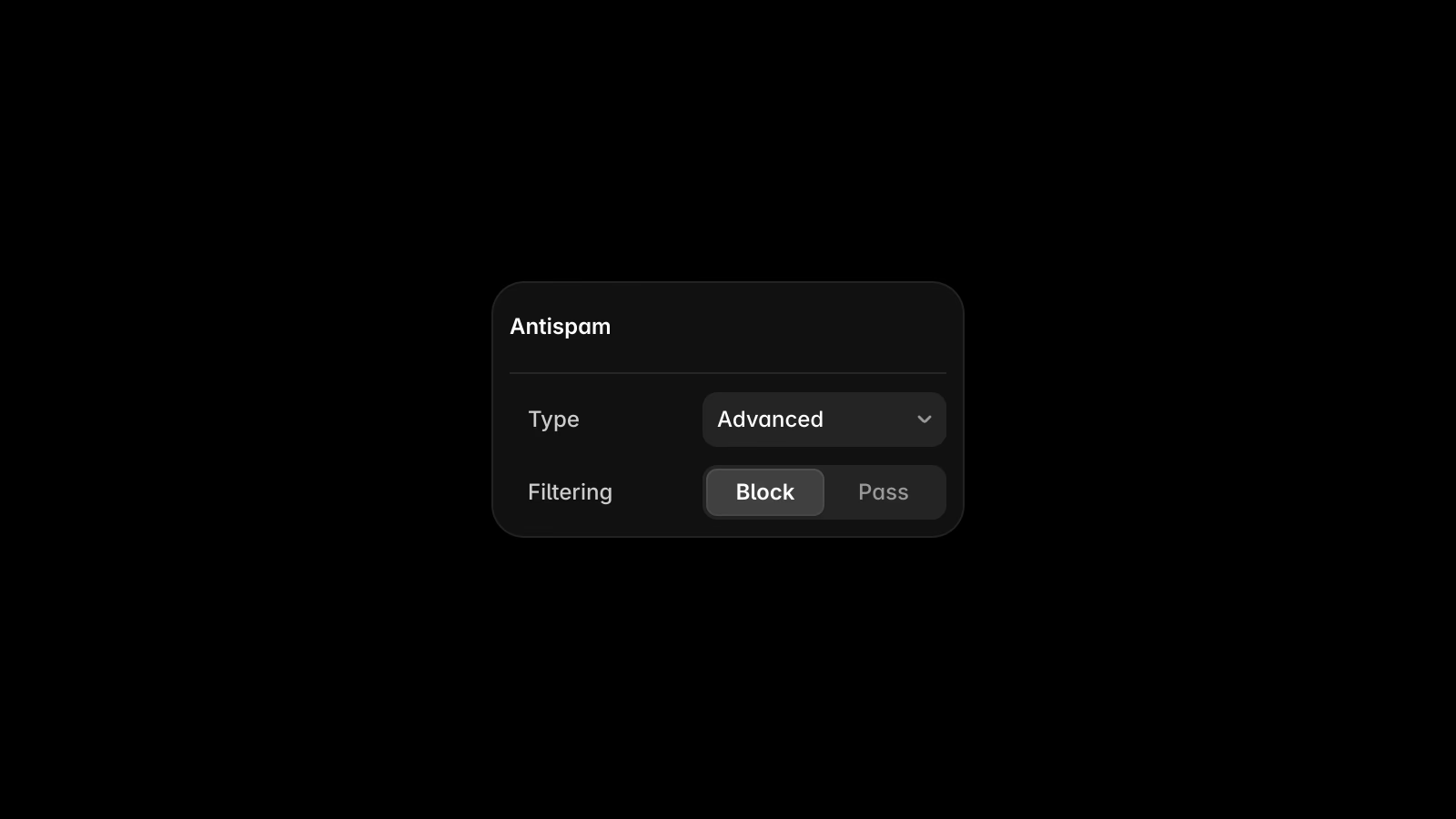
Framer added new spam protection to forms with two new modes: Basic and Advanced. Basic checks submissions against a set of rules, while Advanced uses AI to analyze each submission and decide whether it's spam. A welcome upgrade if you've been dealing with noisy form inboxes.
Rive GPU Canvas
Rive introduced GPU Canvas, a new low-level GPU layer that's now in Early Access. It lets you write shaders once and have them run everywhere, Metal, Vulkan, Direct3D, WebGPU, WebGL, whatever the platform needs. You can use it to write shaders, build rendering pipelines, import GLTF files, embed 3D geometry inside 2D artboards, or render 2D components as interactive textures in a 3D scene. The runtime addition weighs only 25KB, and if you're not a GPU programmer, Rive's Agent can write and optimize shaders for you. MCP support is coming next. It all works alongside the existing Rive tooling too, so 3D scenes still work with responsive vector layouts, state machines, data binding, and everything else Rive already does.
Webflow Updates
AI and MCP attribution in Site Activity Log
Webflow added AI attribution to the Site Activity Log, so every change now shows whether it came from a person, Webflow AI, or an MCP-connected tool like Cursor or Claude. You get attribution labels on every entry, a new Source filter, and an enriched `generatedBy` field in the API for teams routing logs into custom tooling. It's available on Enterprise and on by default, no setup needed.
Pan and zoom for pages
Webflow's page canvas now supports pan and zoom the way every other design tool does. Hold spacebar and drag, use middle-mouse, or pinch to pan. Cmd/Ctrl + scroll or pinch to zoom. There's also a zoom dropdown at the top to jump to 50%, 100%, or 200%. A new icon on the canvas bar toggles between the classic scroll mode and the new pan/zoom mode.
Jitter Counters
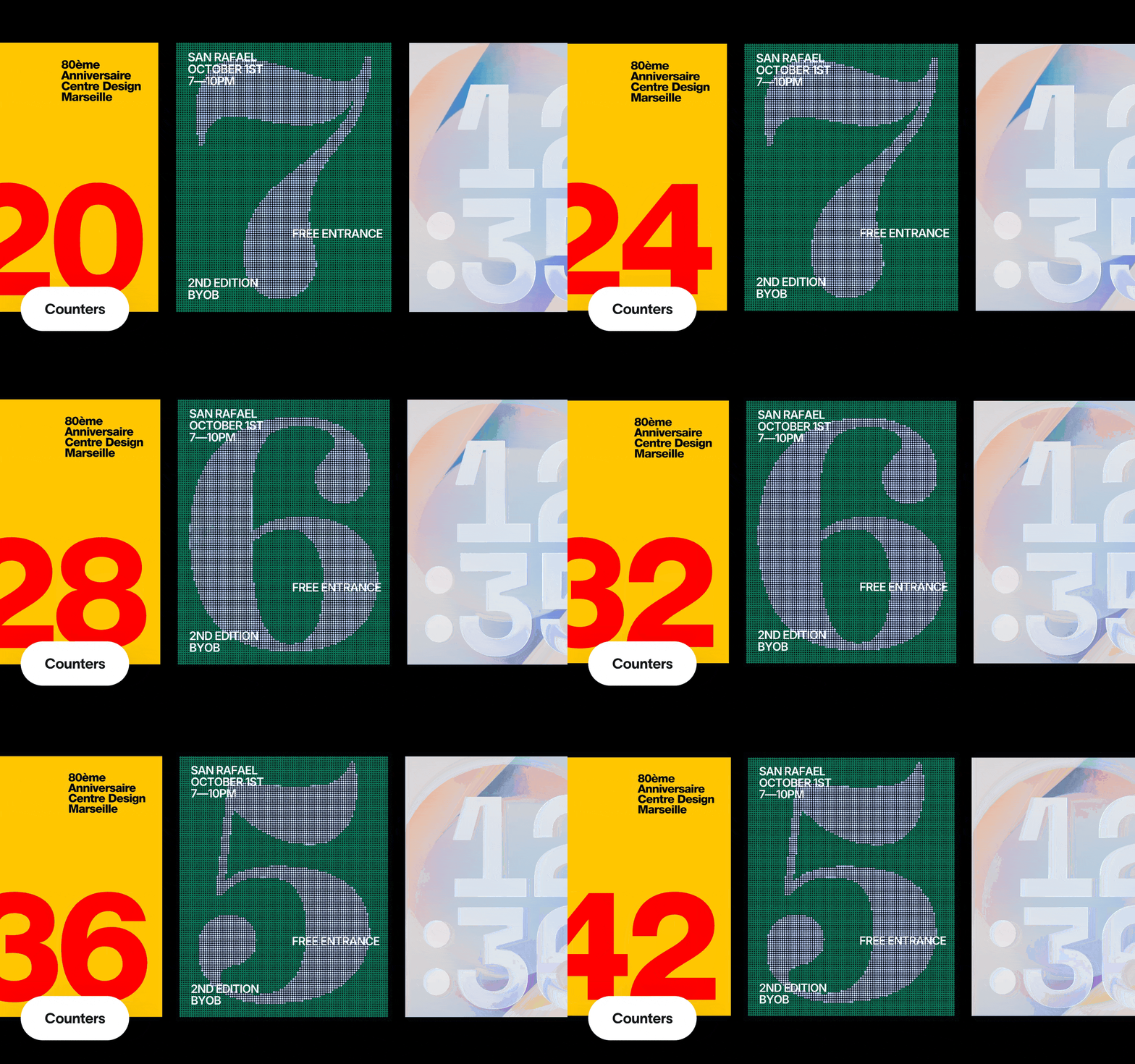
Jitter added animated counters, so you can animate any number as a counting sequence. Add a text layer with a number, go to the Animate tab, select Counter under Custom, then set your From, To, and Step values. It handles integers, decimals, negatives, percentages, and values with units like $42 or 1,234.50kg. Two other improvements were added alongside this: you can now use images when generating AI effects in Jitter AI, and timeline drag and drop got smoother with a drop line indicator and auto-scroll.
FlutterFlow Designer 1.0
FlutterFlow released Designer 1.0, built around speed, quality, and collaboration. A new custom AI model generates higher-quality designs faster, and real-time collaboration is now live with inline comments and a "Fix with AI" option to resolve feedback on the spot. Designer can also generate full slide decks and presentations, and it now runs natively on Windows.
Penpot 2.16
Penpot 2.16 is a big release. WebGL rendering is now in beta, which should make a real difference when working with large files, complex design systems, and boards packed with components and effects. Design Tokens now appear directly in the Design sidebar alongside the controls you already use, making token-based workflows faster without panel-switching. On top of those two headline features, the release includes over 100 improvements, many of them contributed by the Penpot community.
Codex Product Design Plugin
OpenAI added a Product Design plugin for Codex that helps teams move from a rough idea to a shareable prototype. You can start with a written brief, URL, screenshot, or existing design, explore visual directions, audit user flows, and make static screenshots interactive. Work can be carried forward into tools like Figma and Canva from there.
How to Avoid AI Slop in Vibe-Coded Landing Pages
A great video on identifying the design indicators that make vibe-coded pages look like AI slop, and the workflow to fix them. The problem is specific: lazy selected states, oversized eyebrows, random status pills, glow lights, purple gradients, generic illustrations, default fonts, weak pricing sections. The fix is to stop prompting from zero. Use screenshots, reference URLs, DESIGN.md files, taste skills, better typography, contextual image generation, and precise design vocabulary so you can tell the model exactly what to change. Worth watching even if you already have a workflow, because the vocabulary alone is useful.
WWDC26: Prototyping with Agents in Xcode
Apple published a WWDC session on using coding agents in Xcode for UI prototyping. The key idea is to use agents as collaborators, not designers. Ask for multiple variations up front, go wide early, remix what you like, and iterate. Once you have a direction, bring in real content to see how the UI holds up under actual use. Then use agents to build custom tuning panels for animations and interactions so you can dial in spring curves and transition timing without context-switching between code and UI.
WWDC26: Principles of Great Design
Apple also published a WWDC session on design principles, covering purpose, agency, responsibility, familiarity, flexibility, simplicity, craft, and delight. It's less about new tools and more about the thinking behind what makes an interface worth using. A good reminder that adding features and adding value aren't the same thing.